Thunderbolt 5 vs USB4 vs Thunderbolt 4 in 2026: Advanced Laptop Connectivity Guide
Laptop connectivity has become surprisingly complicated in 2026. Two laptops can have USB-C ports that look almost identical while offering completely different capabilities. One may support ordinary USB data and charging, another may provide USB4 at 40Gbps, while a premium system may include Thunderbolt 5 with 80Gbps bidirectional bandwidth, high-speed PCIe tunneling and enough display bandwidth for advanced multi-monitor workstations.
For professionals buying an expensive laptop, these differences can have a major impact on long-term value.
A creator may want to connect several high-resolution displays, professional audio equipment and fast external SSDs through one dock. A software developer may need high-speed storage, Ethernet and multiple monitors. A business may want standardized one-cable docking across hundreds of employee laptops. A gamer may be interested in external graphics or extremely fast external storage.
Thunderbolt 5, USB4 and Thunderbolt 4 can support many of these workloads, but they are not interchangeable.
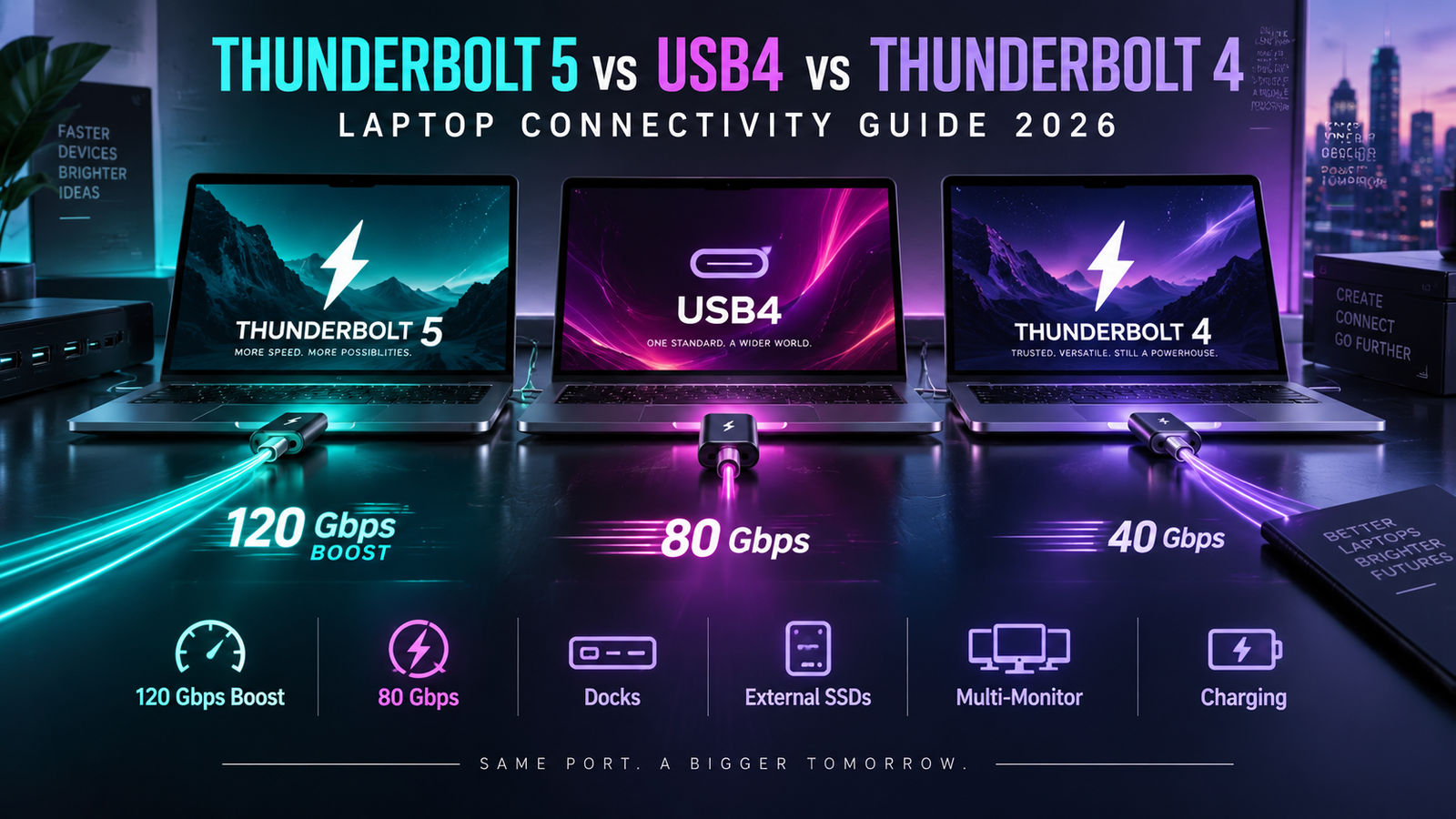
Thunderbolt 5 provides 80Gbps of bidirectional bandwidth as a required platform capability and can use Bandwidth Boost to provide up to 120Gbps in one direction for display-heavy workloads. Intel also requires at least 64Gbps of PCIe data capability for Thunderbolt 5-certified PCs.
USB4 has also advanced significantly. USB4 Version 2.0 supports USB 80Gbps and can optionally operate asymmetrically at up to 120Gbps in one direction and 40Gbps in the other. The specification aligns with newer DisplayPort and PCI Express technologies while remaining backward compatible with earlier USB generations.
The result is an extremely capable but potentially confusing connectivity market.
This guide explains what Thunderbolt 5, USB4 and Thunderbolt 4 actually mean for laptop buyers in 2026 and which specifications matter for docks, external SSDs, monitors, graphics and professional workstations.
Why USB-C Laptop Ports Are So Confusing
USB-C describes the physical connector.
It does not automatically tell you the speed of the connection.
This distinction causes a large amount of confusion.
A USB-C port may support relatively basic USB data.
Another USB-C port may support DisplayPort video output.
Another may support charging.
A USB4 port can tunnel multiple protocols through the same physical connector.
Thunderbolt 4 and Thunderbolt 5 also use USB-C connectors.
From the outside, these ports can look nearly identical.
That means buyers need to read specifications instead of assuming that every USB-C connection provides the same capability.
A laptop product page stating only “USB-C” is therefore not enough information for an advanced buyer.
You should determine:
Which USB generation does the port support?
Does it provide DisplayPort output?
What is the maximum data rate?
Does it support PCIe tunneling?
How much charging power can it accept?
How much power can it provide to peripherals?
Does it support Thunderbolt-certified docks?
Can every USB-C port provide the same capabilities?
These questions can become particularly important once a laptop is connected to a desk setup containing several expensive accessories.
Thunderbolt 5: The Premium Laptop Connectivity Standard
Thunderbolt 5 represents Intel’s latest high-performance Thunderbolt generation.
The most important improvement is bandwidth.
Thunderbolt 4 provides a 40Gbps connection.
Thunderbolt 5 doubles the required bidirectional connection bandwidth to 80Gbps.
For display-intensive workloads, Thunderbolt 5 can automatically use Bandwidth Boost to allocate up to 120Gbps in one direction while maintaining 40Gbps in the other.
That additional bandwidth can be useful when several high-resolution monitors share the same physical link with storage and other peripherals.
Thunderbolt 5 is therefore particularly interesting for premium creator laptops, mobile workstations and high-end gaming systems.
Thunderbolt 5 Bandwidth Explained
An 80Gbps bidirectional connection means the link can provide very high capacity in both directions.
This is useful for data-intensive peripherals.
Consider an external NVMe storage system.
The laptop needs to send and receive large quantities of information.
A balanced high-speed connection is valuable.
Display workloads can be different.
A monitor connection sends far more information from the laptop toward the display than it receives back.
Thunderbolt 5’s Bandwidth Boost is designed for this type of scenario.
It can reconfigure the link to provide up to 120Gbps toward high-bandwidth displays while retaining 40Gbps in the opposite direction.
USB4 Version 2.0 can also support a similar 120/40 asymmetric operating mode.
Thunderbolt 5 vs Thunderbolt 4 vs USB4
| Feature | Thunderbolt 5 | Thunderbolt 4 | USB4 |
|---|---|---|---|
| Connector | USB-C | USB-C | USB-C |
| Required Minimum Link Speed | 80Gbps | 40Gbps | Can vary by implementation |
| High-Bandwidth Mode | Up to 120Gbps one direction | No 120Gbps Bandwidth Boost | USB4 80Gbps can support 120/40 mode |
| Required PCIe Data Capability | 64Gbps | 32Gbps | Depends on implementation/spec requirements |
| Display Capability | Designed for very high-bandwidth multi-display use | Strong dual-monitor support | Varies by host implementation |
| Certification | Intel certification required | Intel certification required | USB-IF certification ecosystem |
| PCIe Peripherals | Strong support | Strong support | Supported in Windows USB4 designs that meet Microsoft’s requirements |
| Laptop Charging | Up to 240W possible | Depends on USB PD implementation | Depends on USB PD implementation |
| Best Use | Premium workstations, creators, advanced docks | Mainstream premium docking | Broad high-speed USB connectivity |
The most important difference is consistency.
Thunderbolt certification establishes minimum feature and performance requirements.
USB4 is a broader specification and actual implementations can differ.
Intel’s current Thunderbolt comparison lists 80/120Gbps connectivity and 64Gbps PCIe requirements for Thunderbolt 5, compared with 40Gbps connectivity and 32Gbps PCIe for Thunderbolt 4.
USB4 Version 2.0 and USB 80Gbps
USB4 has become significantly more capable.
The USB Implementers Forum published USB4 Version 2.0 to support up to 80Gbps operation over USB-C.
USB-IF states that USB4 80Gbps uses a newer physical layer architecture and can operate over suitable USB-C cables. The specification also allows asymmetric operation reaching up to 120Gbps in one direction while retaining 40Gbps in the other.
USB4 also supports dynamic sharing of bandwidth between data and display traffic.
This matters because a dock may simultaneously carry:
External monitor data.
USB peripherals.
Ethernet.
External storage.
Audio equipment.
PCIe devices.
Rather than assigning permanent fixed bandwidth to every device, USB4 can dynamically allocate capacity based on the active workload.
Windows 11 Has Stronger USB4 Requirements
The Windows ecosystem has also become more standardized around USB4.
Microsoft’s Windows Hardware Compatibility Program includes specific requirements intended to reduce the inconsistent USB-C experience that frustrated users in earlier generations.
Microsoft says a Windows PC advertising USB 80Gbps must support both symmetric 80/80Gbps operation and asymmetric 120/40Gbps mode.
Microsoft also tests DisplayPort and PCIe tunneling, sleep/resume behavior and power-related requirements as part of its USB4 certification framework.
This is important because specifications on paper do not always produce reliable real-world peripherals.
Certification and operating-system testing can reduce the chance of problems involving docks, displays and storage.
Thunderbolt 5 PCIe Bandwidth Is a Major Upgrade
One of Thunderbolt 5’s most important improvements has little to do with monitors.
It is PCI Express bandwidth.
Thunderbolt can tunnel PCIe traffic through an external cable.
PCIe is the interface used internally by devices such as NVMe SSDs and graphics processors.
Thunderbolt 4 requires 32Gbps of PCIe data capability.
Thunderbolt 5 raises the minimum to 64Gbps.
This provides more room for extremely fast external storage and other PCIe-based accessories.
It also has implications for external graphics.
Thunderbolt 5 and External GPUs
External GPUs, commonly called eGPUs, allow a desktop graphics card or specialized external graphics unit to connect to a laptop through a high-speed external interface.
Historically, Thunderbolt 3 and Thunderbolt 4 were often used for this purpose.
The major limitation was bandwidth.
A desktop GPU installed directly in a desktop computer has access to a much wider internal PCIe connection.
An external GPU connected through Thunderbolt has less bandwidth.
Thunderbolt 5’s doubled PCIe requirement improves this situation.
It does not make an external GPU identical to an internally installed desktop GPU.
Latency and bandwidth limitations still exist.
However, a 64Gbps PCIe data requirement provides substantially more external PCIe capacity than Thunderbolt 4’s 32Gbps minimum.
Microsoft also identifies PCIe tunneling through USB4 as an important capability for external graphics and high-performance storage on supported Windows systems.
This makes modern high-bandwidth USB-C connectivity increasingly interesting for modular laptop workstations.
Should You Buy a Laptop for eGPU Use?
External graphics can sound ideal.
Buy a thin laptop.
Use integrated graphics while traveling.
Connect a powerful GPU when sitting at a desk.
In practice, the decision is more complicated.
An eGPU enclosure can be expensive.
A desktop graphics card adds additional cost.
Performance is usually lower than running the same graphics card directly inside a desktop PC.
Compatibility can vary.
Drivers matter.
The laptop’s CPU can become another limitation.
For someone who spends most of the day at one desk, buying a separate desktop may provide better performance per dollar.
But eGPU technology can still make sense for specialized workflows where one laptop needs to serve both as a portable system and a desk-based GPU workstation.
Thunderbolt 5 makes that idea more practical than previous Thunderbolt generations.
External SSD Performance Is One of the Best Thunderbolt 5 Use Cases
Professional creators often work with enormous files.
High-resolution video footage can consume hundreds of gigabytes.
Large photography libraries can also require substantial storage.
Developers may work with virtual machines, datasets and project archives.
Keeping everything on the internal laptop SSD is not always practical.
External NVMe storage provides an alternative.
Thunderbolt 5’s increased PCIe bandwidth makes extremely fast external SSD systems more useful.
However, advertised interface speed and actual SSD performance should not be confused.
An 80Gbps connection does not guarantee that one SSD will transfer files at 80Gbps.
The SSD controller, NAND flash, enclosure, thermal design and workload all affect real performance.
The bus simply determines the maximum connection capacity available.
Why External SSD Thermal Design Matters
High-speed NVMe drives generate heat.
Inside a desktop computer, manufacturers can use large heatsinks and airflow.
An external enclosure has much less cooling space.
During a short file transfer, the SSD may achieve very high speed.
During a long transfer involving hundreds of gigabytes, temperature can rise.
The SSD may reduce performance to protect itself.
This is known as thermal throttling.
Professionals buying expensive Thunderbolt 5 storage should therefore consider sustained performance rather than only peak benchmark numbers.
A well-designed enclosure can matter just as much as the interface.
Thunderbolt 5 for Video Editors
Video production is one of the clearest use cases for Thunderbolt 5.
A professional editor may have:
Two or three external monitors.
A high-speed RAID array.
External NVMe storage.
An audio interface.
Capture equipment.
Ethernet.
A keyboard and mouse.
An SD card reader.
All of those devices can potentially connect through a dock or a combination of high-speed peripherals.
An 80Gbps connection provides far more headroom than earlier 40Gbps systems.
Bandwidth Boost can also increase capacity toward displays when required.
This means the laptop can increasingly function as the center of a serious editing workstation while remaining portable.
Thunderbolt 5 for 8K Displays
Intel specifically positions Thunderbolt 5 for very high-resolution display scenarios and lists support for configurations including dual 8K 60Hz monitors under appropriate conditions.
Actual display support depends on several components.
The laptop GPU needs to support the required output.
The dock must support the display mode.
The cable must have sufficient capability.
The monitor must support the relevant standard.
Compression technology such as Display Stream Compression may also be used.
This means buyers should avoid assuming that the Thunderbolt 5 logo alone guarantees every possible monitor configuration.
The complete signal chain matters.
Multiple 4K Monitors Are a More Practical Use Case
Most professionals are not using dual 8K monitors.
Multiple 4K displays are much more common.
Developers can use one screen for code and another for documentation.
Financial professionals may use several screens for spreadsheets and market information.
Video editors may use separate preview and timeline displays.
Business users may combine an ultrawide screen with another monitor.
Thunderbolt 4 is already capable of strong multi-monitor setups.
Thunderbolt 5 becomes more useful when display resolution, refresh rate and other peripherals all increase simultaneously.
A single 4K office monitor does not require Thunderbolt 5.
The advantage appears as workstation complexity grows.
High Refresh Rates Increase Display Bandwidth Requirements
Resolution is only part of display bandwidth.
Refresh rate also matters.
A 4K monitor running at 60Hz requires much less display data than the same resolution running at 240Hz.
Color depth matters too.
HDR formats can increase requirements.
High-end gaming displays therefore create enormous bandwidth demands.
Thunderbolt 5’s Bandwidth Boost was specifically developed for video-intensive workloads where display traffic may need more capacity in one direction than ordinary bidirectional data traffic.
This makes the technology particularly relevant to premium gaming laptops and creator systems with high-refresh external monitors.
Thunderbolt 5 Docks Can Replace Many Individual Cables
Docking remains one of the biggest advantages of high-speed USB-C connectivity.
A laptop user can arrive at a desk and connect one cable.
That cable can potentially connect:
Displays.
Ethernet.
Keyboard.
Mouse.
External SSD.
Audio equipment.
Webcam.
Power.
Other USB accessories.
This can turn a portable notebook into a complete desktop workstation.
For businesses, standardized docking can simplify office environments.
Employees can move between desks without carrying several adapters.
IT departments can standardize monitors and Ethernet connectivity.
But businesses should test compatibility before purchasing hundreds of docks.
Charging Through Thunderbolt 5
Thunderbolt 5 works with modern USB Power Delivery technology.
Intel says Thunderbolt 5 designs can support charging up to 240W, while certain charging requirements apply to certified notebook implementations.
This is important because older USB-C charging often could not provide enough power for high-performance laptops.
A thin office laptop may consume relatively little power.
A gaming laptop containing a powerful CPU and RTX GPU can consume far more.
Higher USB Power Delivery capability creates the possibility of one-cable docking even on more powerful machines.
However, buyers need to check the exact laptop.
A port capable of high-speed Thunderbolt data does not mean the manufacturer necessarily allows the laptop to charge at the maximum theoretical USB PD level.
Why 240W USB-C Charging Does Not Mean Every Laptop Uses 240W
240W is a maximum capability within modern USB Power Delivery.
It does not mean every Thunderbolt 5 laptop receives 240W.
Laptop manufacturers design systems around specific power requirements.
A thin productivity notebook may require only 65W.
A larger professional machine may require 100W or 140W.
Extremely powerful gaming laptops may still use proprietary power connectors because their combined CPU and GPU power requirements exceed what the manufacturer wants to deliver through USB-C.
Consumers should therefore look at the laptop’s actual charging specification rather than the theoretical interface maximum.
Cable Quality Becomes More Important at Higher Speeds
A USB-C cable can look completely ordinary while supporting very different capabilities.
Some cables are designed mainly for charging.
Others support basic USB data.
Some are certified for 40Gbps.
Thunderbolt 5 and USB 80Gbps require appropriately capable cables to achieve maximum performance.
Intel’s Thunderbolt certification includes cable testing and quality audits, while USB-IF also provides certified performance labeling for compatible USB products.
For expensive high-performance storage or display setups, using the correct certified cable is important.
A low-quality cable can reduce connection speed or create intermittent reliability problems that are difficult to diagnose.
Active vs Passive USB-C Cables
Cable length can affect high-speed data transmission.
Passive cables contain simpler wiring.
Active cables include electronics that help maintain signal quality over greater distances.
At extremely high bandwidth, cable design becomes increasingly challenging.
This is why some longer high-performance cables cost substantially more than ordinary USB-C charging cables.
Professionals should consider cable purchases part of the workstation design rather than an afterthought.
A $20 cable that creates reliability problems can undermine a dock and storage setup costing thousands of dollars.
USB4 Is Not Automatically Thunderbolt 5
Another common misconception is that USB4 and Thunderbolt 5 are simply different names for the same thing.
They are closely related.
They are not identical certifications.
Thunderbolt 5 is compliant with the USB 80Gbps standard while adding Intel-defined minimum performance and certification requirements. Intel requires characteristics such as 64Gbps PCIe data capability and specific Thunderbolt certification testing.
USB4 is a broader industry specification.
The exact capability of a USB4 implementation can therefore depend on the laptop.
Microsoft’s Windows certification requirements help improve consistency, particularly on modern Windows 11 systems, but buyers should still check the exact specification.
Windows 11 Makes USB4 Easier to Manage
Windows 11 provides a USB4 management interface that can show attached USB4 hubs and devices.
Microsoft has continued developing the operating system around USB4 connection management and device compatibility.
Its Windows certification program checks behavior such as DisplayPort tunneling, PCIe tunneling and sleep/resume operation.
This is particularly valuable for laptop docks.
Earlier generations of high-speed docking could sometimes experience problems after the laptop resumed from sleep.
Modern certification requirements are intended to make these experiences more predictable.
USB4 Can Also Connect Two PCs
One less familiar USB4 feature is interdomain networking.
Windows supports an Ethernet-over-USB4 protocol that allows two compatible USB4 PCs to establish a network connection directly through a USB4 cable.
Microsoft describes this as USB4NET and notes that the protocol can also maintain compatibility with certain Thunderbolt 3 connections.
This can provide an extremely fast direct connection for transferring information between computers.
It is a specialized feature, but it illustrates how much more USB4 can do than conventional USB file transfer.
Thunderbolt 4 Is Still Relevant in 2026
Thunderbolt 5 is faster.
That does not make Thunderbolt 4 obsolete.
Thunderbolt 4 still provides 40Gbps connectivity and requires 32Gbps PCIe capability. It also supports features including wake from sleep through compatible docks and hardware-supported DMA protection on certified systems.
For many office and professional users, Thunderbolt 4 remains more than sufficient.
A laptop connected to:
Two ordinary 4K monitors.
Gigabit or multi-gigabit Ethernet.
Keyboard and mouse.
Webcam.
External storage.
may operate perfectly well using a good Thunderbolt 4 dock.
Upgrading to Thunderbolt 5 simply for the newer logo would provide little value unless the workstation is actually approaching the limits of Thunderbolt 4.
Thunderbolt 5 vs Thunderbolt 4 for External SSDs
Storage is one area where Thunderbolt 5 can provide a clearer advantage.
Thunderbolt 4’s 32Gbps minimum PCIe data capability places a practical ceiling on extremely fast external NVMe devices.
Thunderbolt 5 doubles the required PCIe capability to 64Gbps.
That creates substantially more room for next-generation external SSDs and RAID systems.
However, users need storage capable of using that additional bandwidth.
A basic external SSD limited to around 1,000 MB/s gains little from Thunderbolt 5.
The biggest advantage appears with premium PCIe/NVMe storage designed for higher performance.
Thunderbolt 5 vs Thunderbolt 4 for Gaming
Gaming workloads can benefit from Thunderbolt 5 in several ways.
High-refresh external monitors consume significant bandwidth.
Fast external SSDs can store large game libraries.
External GPUs can benefit from additional PCIe capacity.
High-performance docks can connect Ethernet, audio and peripherals simultaneously.
Intel specifically positions Thunderbolt 5 for gaming scenarios including external SSD gaming, high-resolution displays and high-refresh monitor configurations.
But gaming performance still depends primarily on the laptop’s CPU and GPU.
Thunderbolt 5 should be viewed as an advanced connectivity feature rather than a replacement for strong internal hardware.
Thunderbolt 5 for AI and Machine Learning Laptops
AI workloads are creating another interesting use case.
Local models can consume large amounts of storage.
Datasets can be enormous.
Developers may also use specialized external accelerators.
High-speed external storage can make it easier to move models and datasets between workstations.
External PCIe connectivity creates additional opportunities for specialized hardware.
However, the Thunderbolt interface does not make the laptop itself faster at AI processing.
NPU, GPU, RAM and VRAM remain the major local AI performance components.
Thunderbolt 5 simply expands the laptop’s ability to connect to high-performance external hardware.
Business Users Should Think About Docking Standardization
For a large organization, connectivity decisions affect more than one employee.
A business may purchase thousands of laptops over several years.
Dock compatibility becomes a major cost consideration.
A standardized high-speed USB-C or Thunderbolt environment can reduce cable clutter and allow employees to move between compatible workspaces.
IT teams should evaluate:
Dock firmware updates.
Monitor compatibility.
Ethernet reliability.
Charging capacity.
Security requirements.
Wake-from-sleep behavior.
Laptop model support.
Warranty coverage.
Replacing a dock for every employee can become expensive.
Connectivity should therefore be part of long-term procurement planning.
Thunderbolt Security and DMA Protection
External PCIe devices are powerful because they can communicate at a low level with the computer.
That power creates potential security concerns.
Thunderbolt 4 and Thunderbolt 5 certification includes Intel VT-d-based DMA protection requirements.
DMA stands for direct memory access.
DMA protection helps prevent unauthorized external devices from gaining inappropriate access to system memory.
This feature is particularly important in managed business environments.
However, hardware security is only one layer.
Operating-system configuration, firmware updates and endpoint security policies remain important.
Which Users Actually Need Thunderbolt 5?
Thunderbolt 5 provides the most value to users who push large amounts of data through external devices.
Video editors are a strong example.
3D artists using large external project storage can benefit.
Photographers with very large libraries may benefit.
Gamers using high-refresh external monitors may benefit.
Developers with several monitors and fast storage may appreciate it.
Mobile workstation users can build extremely powerful single-cable desk environments around it.
A general office user running a 1080p monitor, mouse and keyboard does not need 80Gbps bandwidth.
Thunderbolt 4 or even a good USB4 implementation can already handle that type of workload easily.
2026 Connectivity Recommendation by User Type
| User Type | Practical Connectivity Level | Main Reason |
|---|---|---|
| General Office User | USB4 / Thunderbolt 4 | Standard docks and monitors |
| Remote Professional | Thunderbolt 4 | Reliable one-cable workstation |
| Software Developer | Thunderbolt 4 / 5 | Multi-monitor and fast storage |
| Photographer | Thunderbolt 4 / 5 | Large external SSD libraries |
| 4K/8K Video Editor | Thunderbolt 5 | High-speed storage and display bandwidth |
| 3D Creator | Thunderbolt 5 | Storage, docks and PCIe peripherals |
| High-End Gamer | Thunderbolt 5 | High-refresh displays and external PCIe |
| Enterprise Fleet | USB4 / Thunderbolt based on needs | Dock standardization |
| AI Developer | Thunderbolt 5 useful but optional | Fast external model/data storage |
The correct choice depends on the complete workstation rather than the interface name alone.
What to Check Before Buying a Thunderbolt 5 Laptop
Do not stop after seeing “Thunderbolt 5” on the specifications page.
Check how many Thunderbolt 5 ports are included.
Some laptops may have one premium high-speed port and several lower-capability USB-C ports.
Check charging support.
Check display support.
Check whether the ports are connected directly to the desired GPU for your workflow.
Check the laptop’s docking compatibility.
Check whether your current dock actually supports Thunderbolt 5.
Check your cables.
Check the speed of your external SSD.
The slowest component in the connection chain can determine overall performance.
Should You Upgrade From Thunderbolt 4 to Thunderbolt 5?
For existing Thunderbolt 4 laptop owners, the answer depends on workload.
If your current setup works perfectly, there is little reason to replace the laptop solely for Thunderbolt 5.
Thunderbolt 4 already provides excellent connectivity.
The upgrade becomes more valuable when you need substantially faster external PCIe storage, very high-bandwidth displays or next-generation docking.
Professionals replacing a laptop in 2026 may nevertheless want Thunderbolt 5 because it provides more future headroom.
A premium laptop may remain in service for four or five years.
External storage and display requirements could increase considerably during that period.
Is USB4 80Gbps as Good as Thunderbolt 5?
The answer depends on the implementation.
At the physical-link level, USB4 Version 2.0 supports 80Gbps and an optional 120/40 asymmetric mode.
That places it in the same general bandwidth class as Thunderbolt 5.
Thunderbolt 5’s advantage is that Intel makes specific capabilities mandatory and verifies them through certification.
A properly implemented USB4 80Gbps system can therefore be extremely capable.
But buyers should verify PCIe performance, display support, charging and certification rather than assuming identical functionality.
Windows 11’s newer hardware certification requirements are helping reduce this uncertainty.
Future-Proofing a Premium Laptop
“Future-proof” is an imperfect term because no technology remains current forever.
However, connectivity has a major influence on how long a laptop remains useful.
A powerful internal processor can eventually feel limited if the laptop cannot connect to newer displays or storage.
Thunderbolt 5 offers significantly more external bandwidth than Thunderbolt 4.
USB4 80Gbps also provides major improvements.
For a premium laptop intended to remain in service for several years, these interfaces can therefore provide meaningful long-term flexibility.
The value is greatest when the user already invests in high-end peripherals.
Final Thoughts
Thunderbolt 5 is one of the most important laptop connectivity upgrades of the current generation.
It doubles Thunderbolt 4’s required connection bandwidth from 40Gbps to 80Gbps and can provide up to 120Gbps in one direction through Bandwidth Boost. It also doubles required PCIe data bandwidth from 32Gbps to 64Gbps.
USB4 has evolved alongside it.
USB4 Version 2.0 supports USB 80Gbps and can operate at up to 120Gbps in one direction for appropriate workloads. Windows 11 certification requirements are also making high-performance USB4 implementations more consistent.
Thunderbolt 4 remains highly capable and should not be dismissed simply because a newer version exists.
For typical business docking, dual-monitor workstations and mainstream external storage, Thunderbolt 4 can continue to provide an excellent experience.
Thunderbolt 5 becomes most valuable when the laptop is acting as the center of a demanding workstation.
High-resolution displays, high-refresh gaming monitors, next-generation external NVMe storage, professional docks and external PCIe devices can all benefit from the additional bandwidth.
For buyers spending premium money on a laptop in 2026, the most important lesson is simple: do not judge a USB-C port by its shape.
Check the actual bandwidth.
Check PCIe capability.
Check display support.
Check charging.
Check certification.
Check the dock and cable.
A laptop’s connectivity may seem like a minor specification when purchasing the computer, but over several years of ownership it can determine how many monitors, storage devices and professional peripherals the machine can support.
For creators, developers and mobile professionals, that can make Thunderbolt 5 one of the most valuable long-term features on a premium 2026 laptop.